
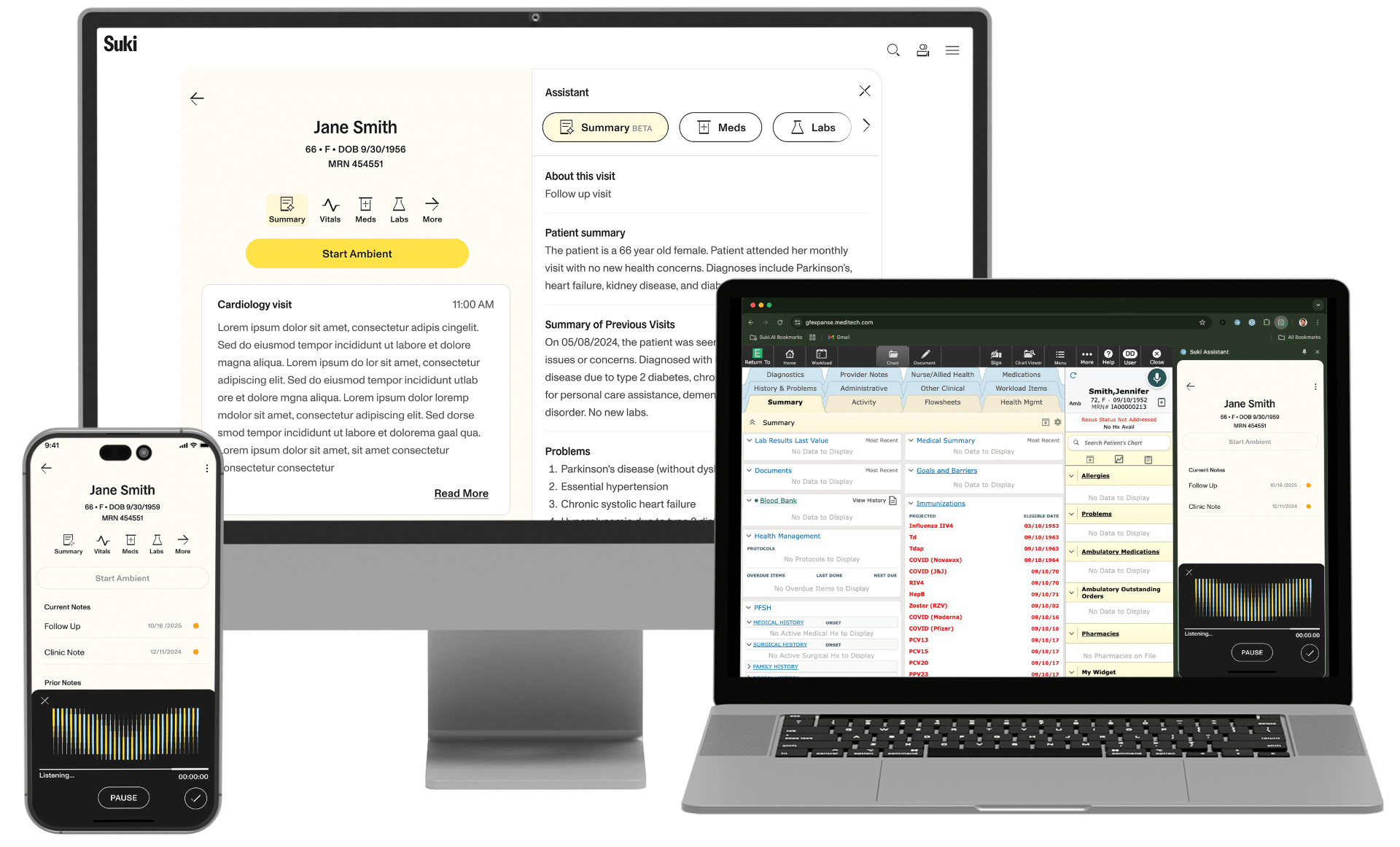
Welcome to Suki
Your ambient documentation journey starts here.
Reminder: By using Suki, you attest that you or your staff will obtain verbal consent from the patient for each visit, and that you are responsible for the final content of the note.
Video guide and work aids
Watch the quickstart video below or download our work aids to see how Suki works.
Click images below to download PDFs.
Get started
First, let’s make sure you can access your account.
Go to app.suki.ai.
In the email field, enter your UAB email address.
Click “Sign in with SSO” to access Suki.
Unable to log in? Click here to verify your account status.
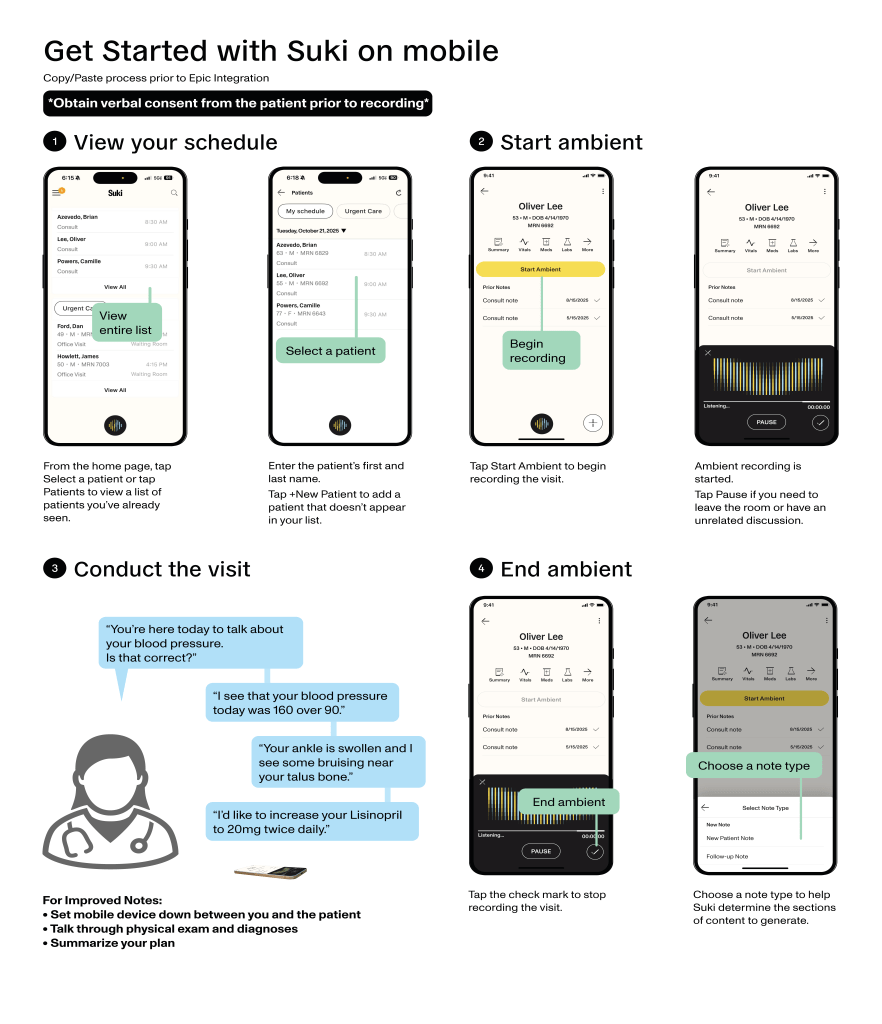
Get the mobile app for Suki to capture your patient encounters and generate an ambient note.



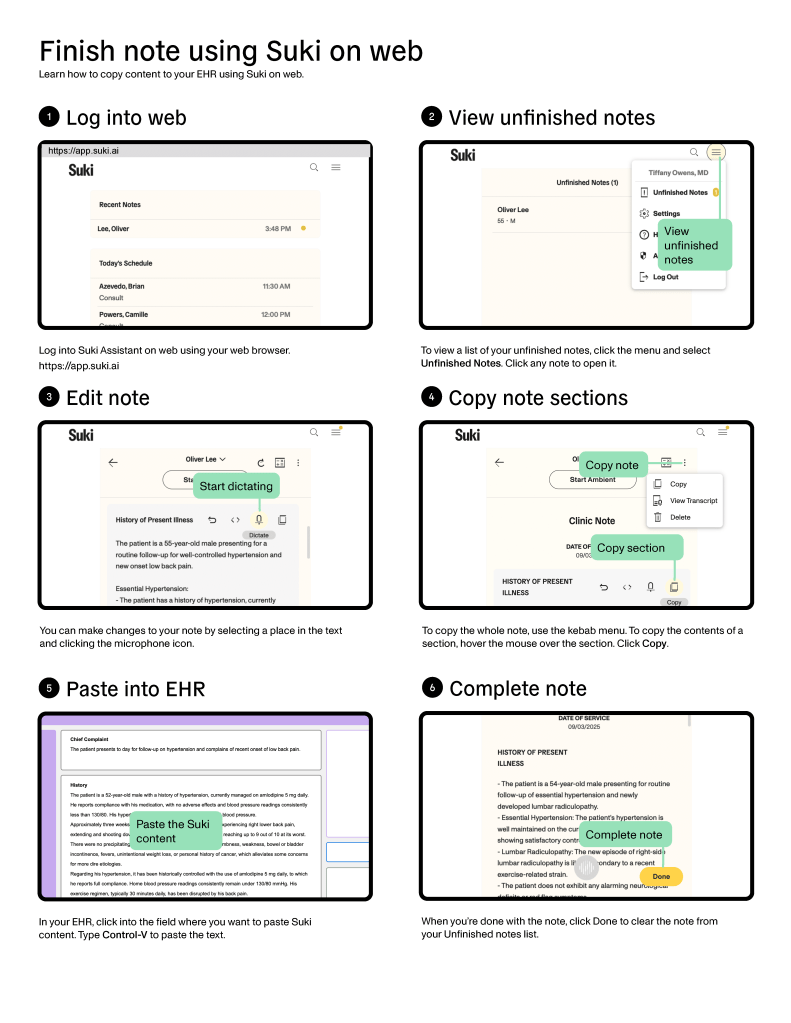
Once your session is complete, review your note on the web app and use the Copy/Paste function to transfer it into your EMR.
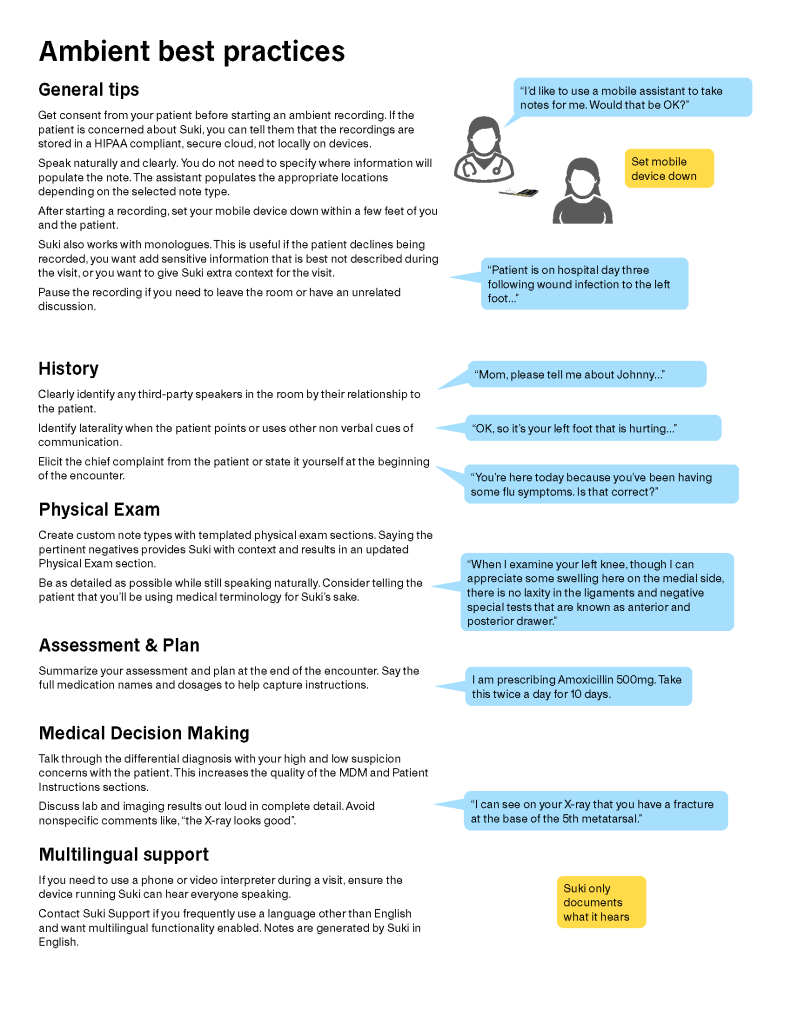
Try Suki during your next encounter.
- Choose a patient and obtain verbal consent
- Start an ambient recording
- Review and accept suggestions
- Copy and paste into your current EHR
When Epic goes live, Suki will be able to send drafts directly into Epic’s note workspace. Until then, it remains a standalone app that providers can use independently.
Find answers to frequently asked questions about Suki.
You can contact Suki Support by emailing support@suki.ai. The team monitors emails 24/7 and responds quickly. Support is also available in any Suki app through Settings > Help > Chat with us.